> ## Documentation Index
> Fetch the complete documentation index at: https://docs.metriport.com/llms.txt
> Use this file to discover all available pages before exploring further.
# SAML/Enterprise SSO
> Guide to setting up SAML/Enterprise SSO.
SAML SSO support your organization to connect to your own identity provider (e.g. Okta, Azure AD, JumpCloud, etc).
## Setup
First, ask the Metriport team for a link to setup SAML/SSO for your account.
This will be a sensitive, unauthenticated link, so please
only share it with the person who manages your
organization's users, if needed.
We support the following Identity Providers with a step-by-step guide:
* Google
* Okta
* Azure
* OneLogin
* JumpCloud
* Duo
* Rippling
* For Identity Providers not on this list you can choose "other" - we'll guide you through a generic SAML setup guide.
Some tips for setting it up:
* Mapping user attributes from your Identity Provider to Metriport:
* Use these fields for the Metriport side of the user attribute mapping:
* `email`
* `first_name`
* `last_name`
* For details about the user groups/roles available at Metriport, see our documentation: [User Roles](/medical-api/more-info/user-roles)
* At the end, you'll see a "You're almost done" page. Please be sure to test the setup before completing the process:
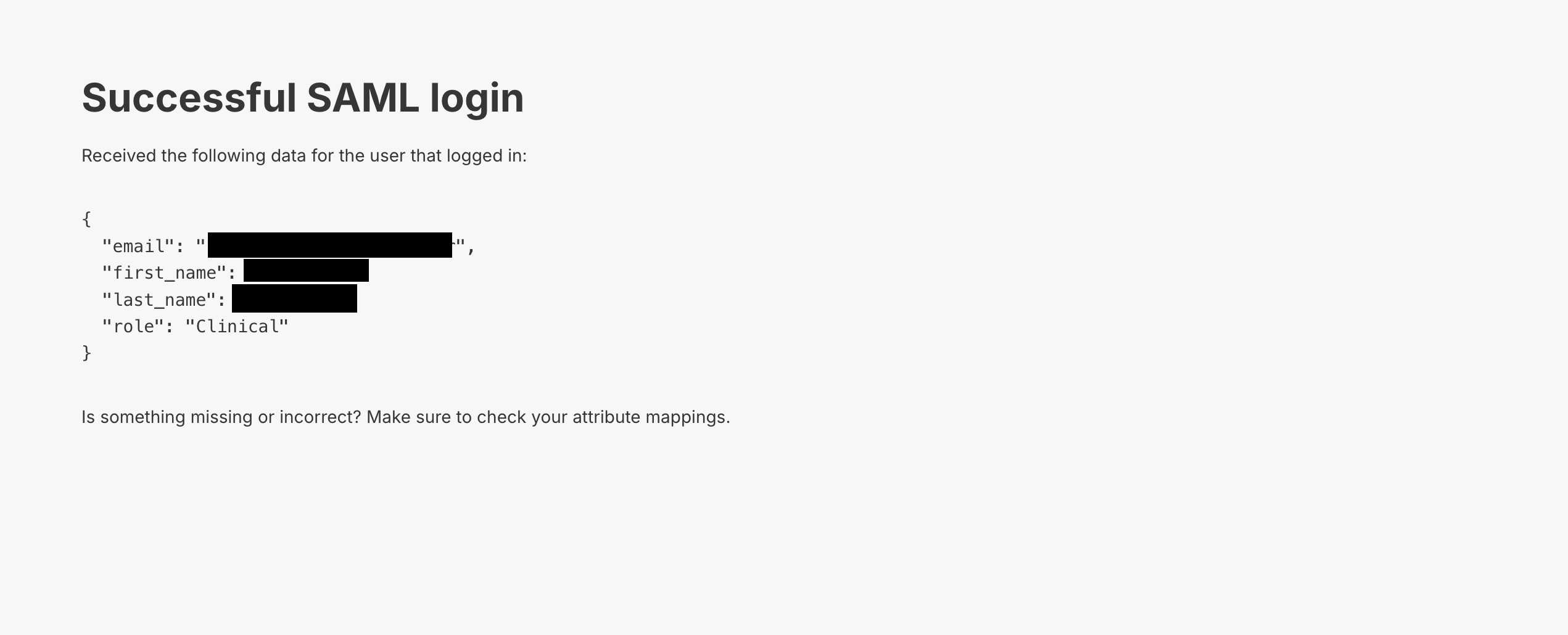
* Click on "Test connection" - if it's successful, you should see a page with the user attributes mapping for the account you chosen on your Identity Provider.
* It might take a few minutes for the new setup to be available on your Identity Provider.
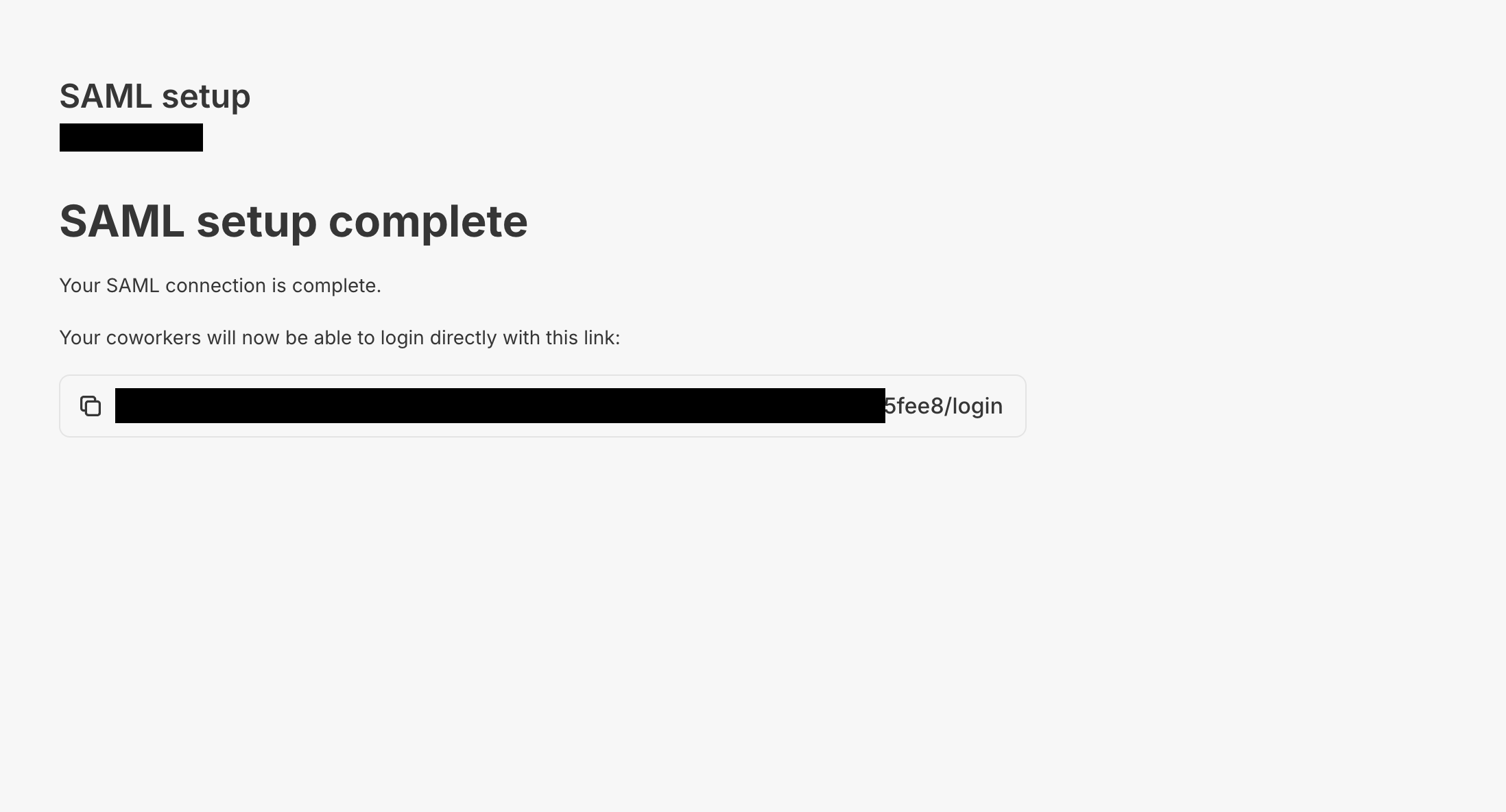
* When done ("SAML setup complete"), we'll show you a URL that you can use to point your users directly to the account selection when signing into Metriport. This URL is only displayed once, so make sure to copy it before closing the page.
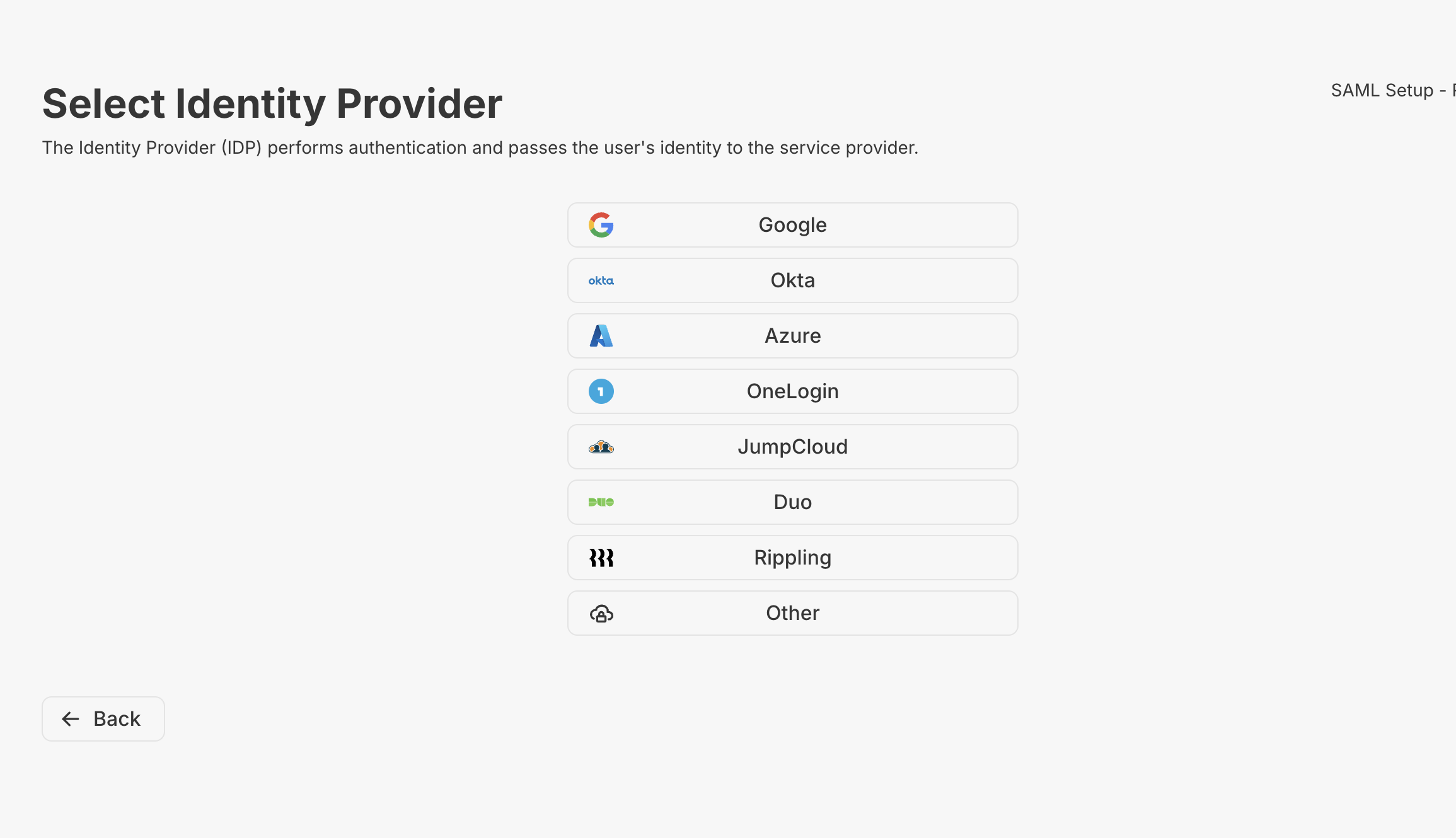
When you open the link, you'll see this page, where you should choose the SAML provider:
 ## Google Example
Other Identity Providers (IDP) might have different steps,
so use the numbered steps pertaining to Google as a
reference.
These steps will guide you through the process of setting up SAML/SSO for Google, and will be similar for other providers.
### Step 1
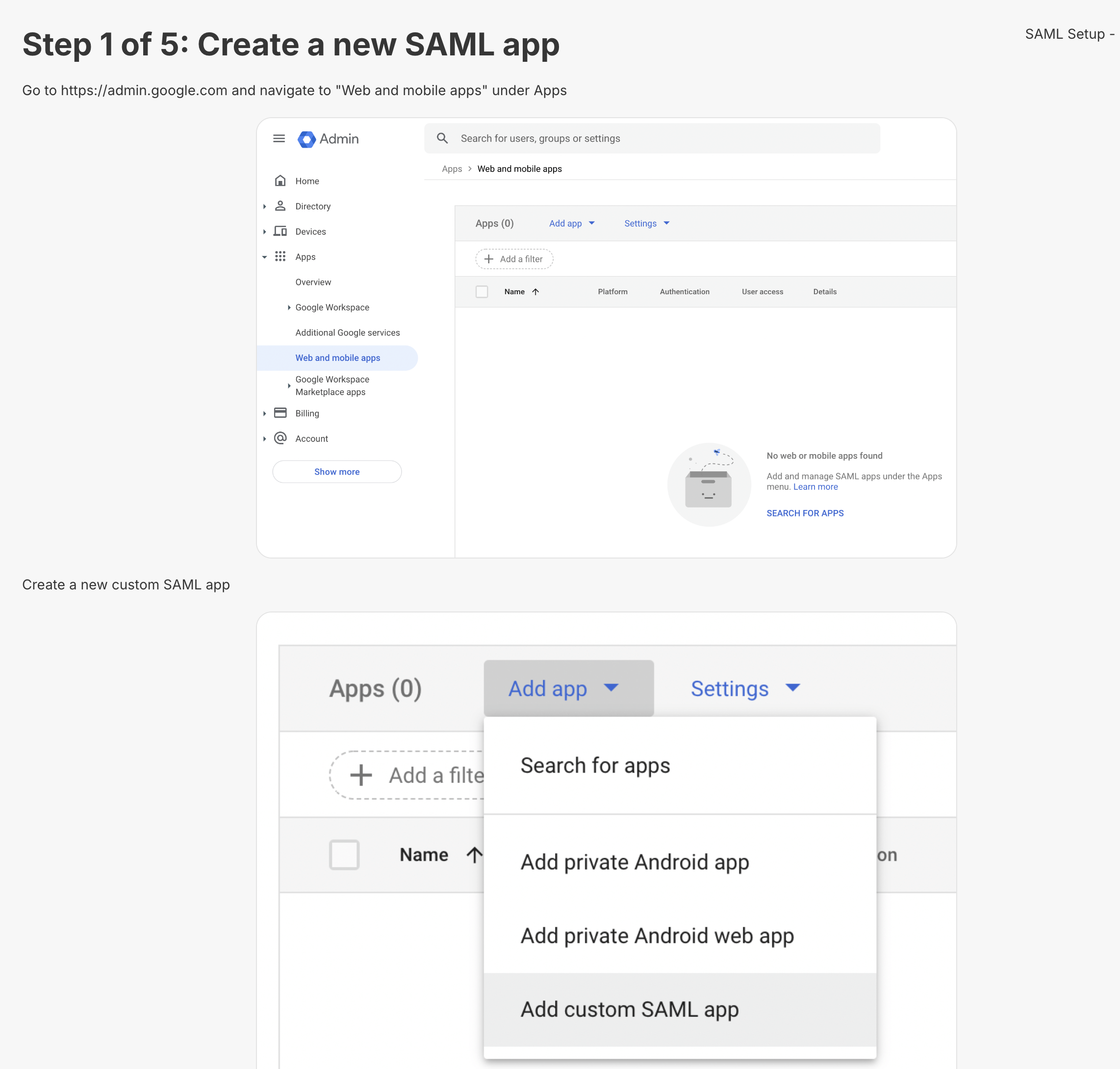
The first step is just an introduction to how to create a SAML app on Google:
## Google Example
Other Identity Providers (IDP) might have different steps,
so use the numbered steps pertaining to Google as a
reference.
These steps will guide you through the process of setting up SAML/SSO for Google, and will be similar for other providers.
### Step 1
The first step is just an introduction to how to create a SAML app on Google:
 ### Step 2
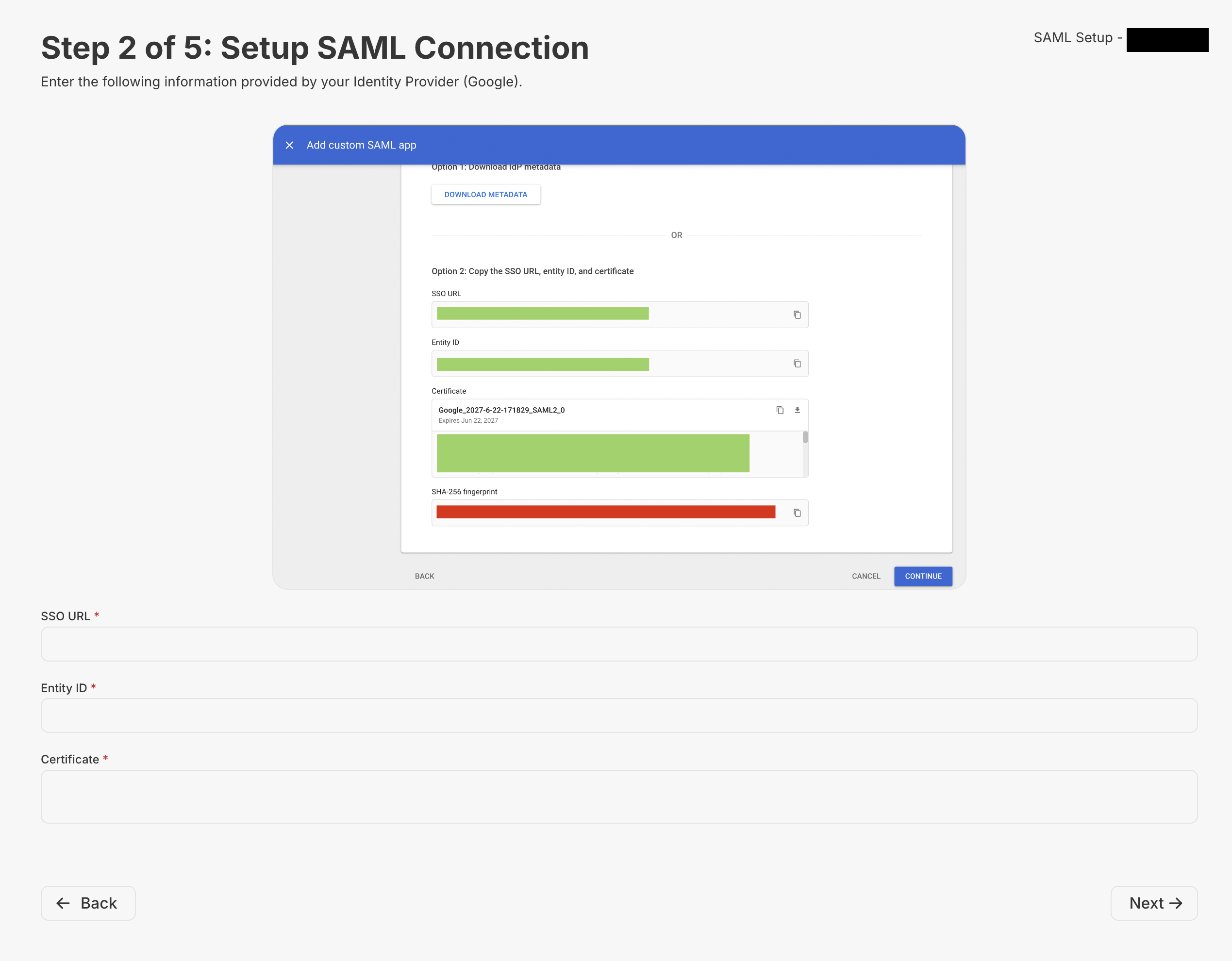
Here you should copy info from Google into Metriport. Those are easily accessible on Google's SAML setup.
### Step 2
Here you should copy info from Google into Metriport. Those are easily accessible on Google's SAML setup.
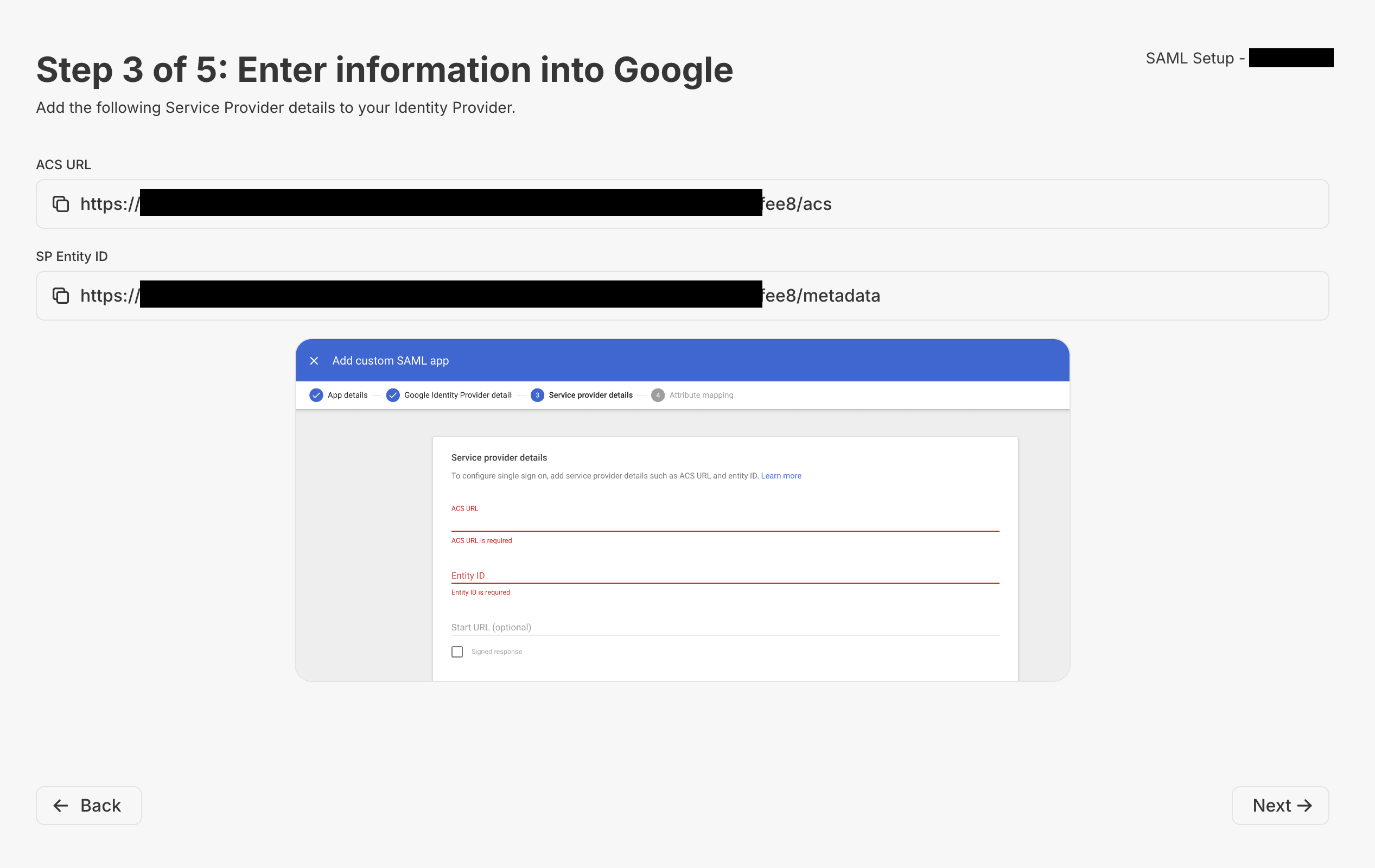
 ### Step 3
Now it's time to copy some info from Metriport into your SAML server. There should be a fairly equivalent field/property on your SAML server matching the fields `ACS URL` and `SP Entity ID`.
### Step 3
Now it's time to copy some info from Metriport into your SAML server. There should be a fairly equivalent field/property on your SAML server matching the fields `ACS URL` and `SP Entity ID`.
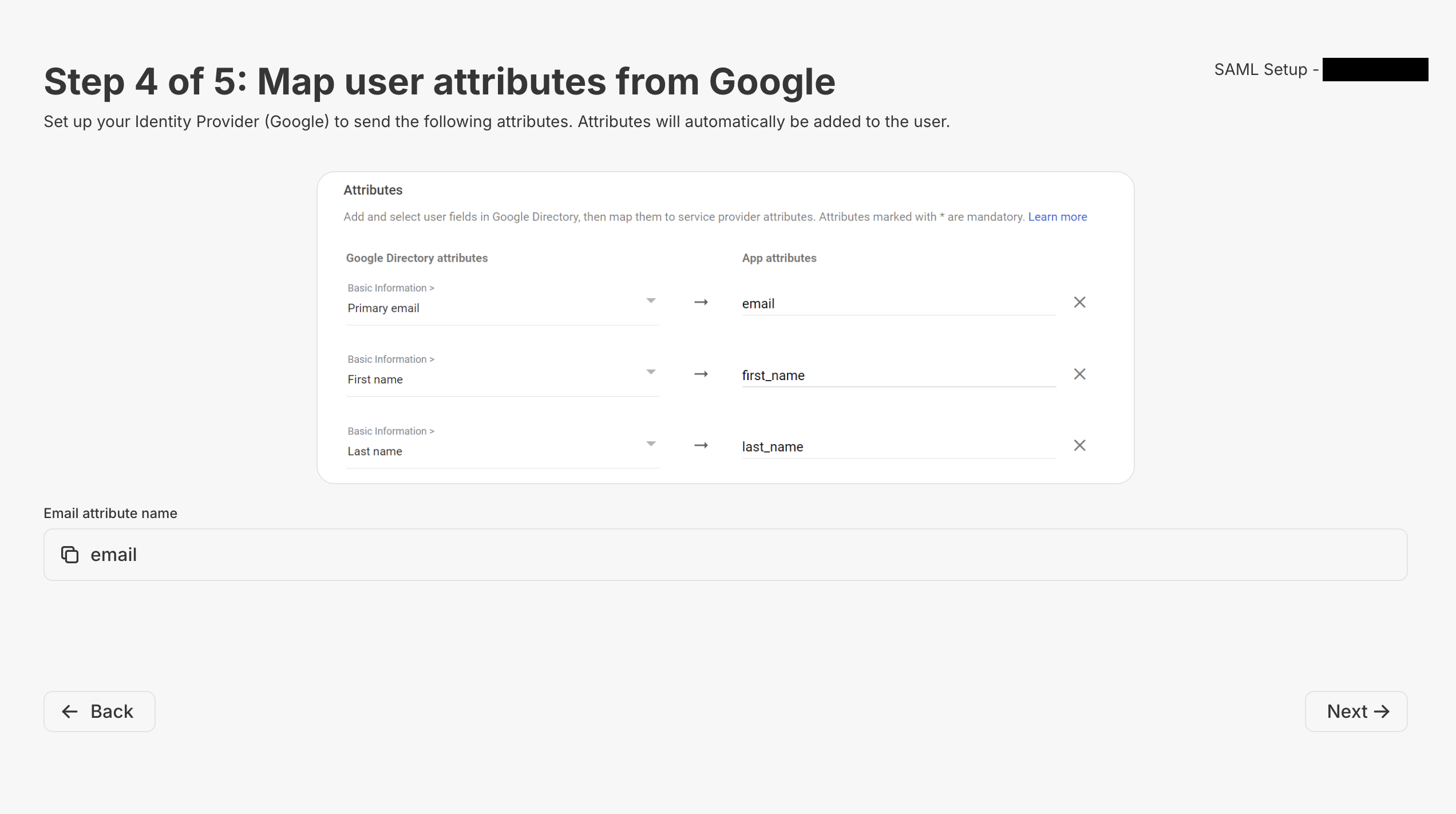
 ### Step 4
Now, Metriport will display a recommendation for mapping user attributes.
It only includes `email` on the list of fields to copy, but you can safely use the `first_name` and `last_name` to map the respective fields to Metriport.
There are no other fields to be mapped beyond those (groups will be done on the next step).
### Step 4
Now, Metriport will display a recommendation for mapping user attributes.
It only includes `email` on the list of fields to copy, but you can safely use the `first_name` and `last_name` to map the respective fields to Metriport.
There are no other fields to be mapped beyond those (groups will be done on the next step).
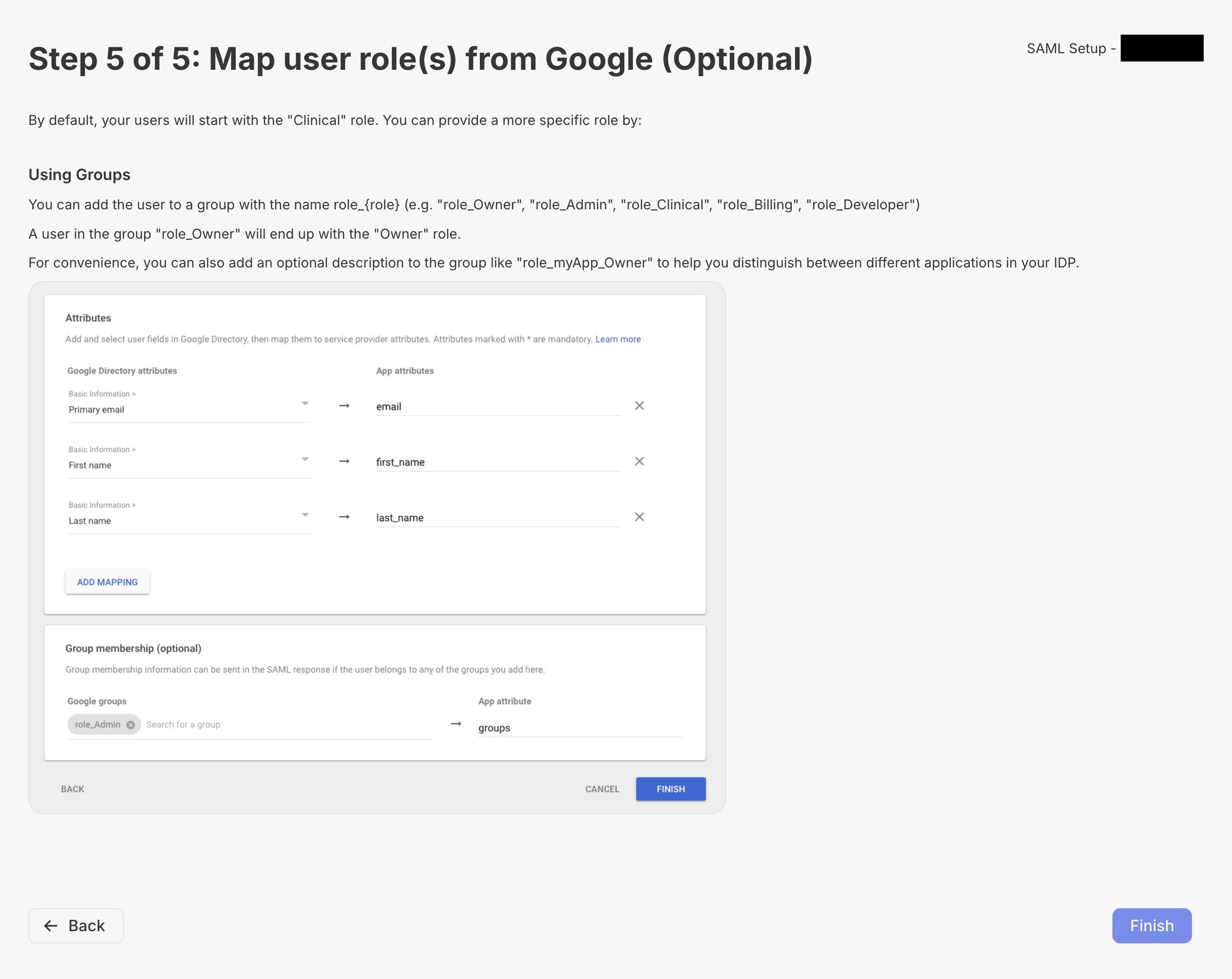
 ### Step 5
Here you can map your groups to Metriport groups - for more info about our groups, see [Groups](/medical-api/more-info/user-roles).
### Step 5
Here you can map your groups to Metriport groups - for more info about our groups, see [Groups](/medical-api/more-info/user-roles).
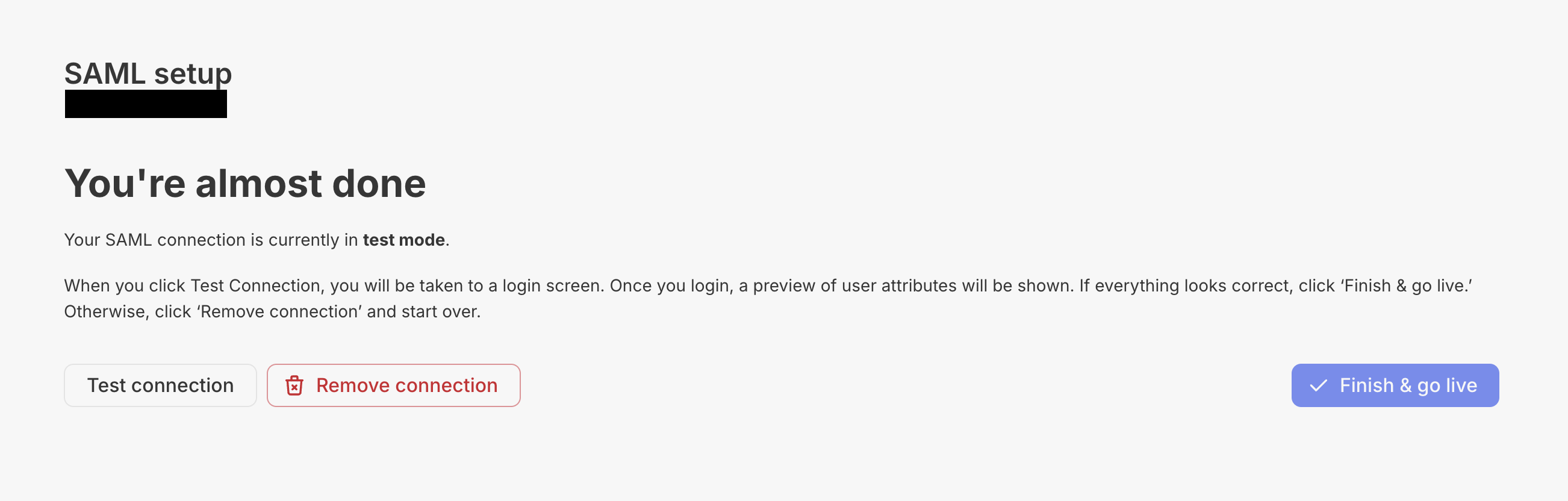
 ### Last Steps
Once the setup is done, Metriport will display a window asking you to validate the SSO setup.
It might take a few minutes after your SAML provider is setup for it to be fully available.
You should `Test connection` before "Finish and go live".
### Last Steps
Once the setup is done, Metriport will display a window asking you to validate the SSO setup.
It might take a few minutes after your SAML provider is setup for it to be fully available.
You should `Test connection` before "Finish and go live".
 When you click `Test connection` (and your SAML provider is set and enabled), you should see a page like this:
 Then, after you click on `Test connection` you should get a page with a link to the SAML/SSO login.
This URL can be used by your users to create an internal URL to login to Metriport bypassing the login page.
Then, after you click on `Test connection` you should get a page with a link to the SAML/SSO login.
This URL can be used by your users to create an internal URL to login to Metriport bypassing the login page.
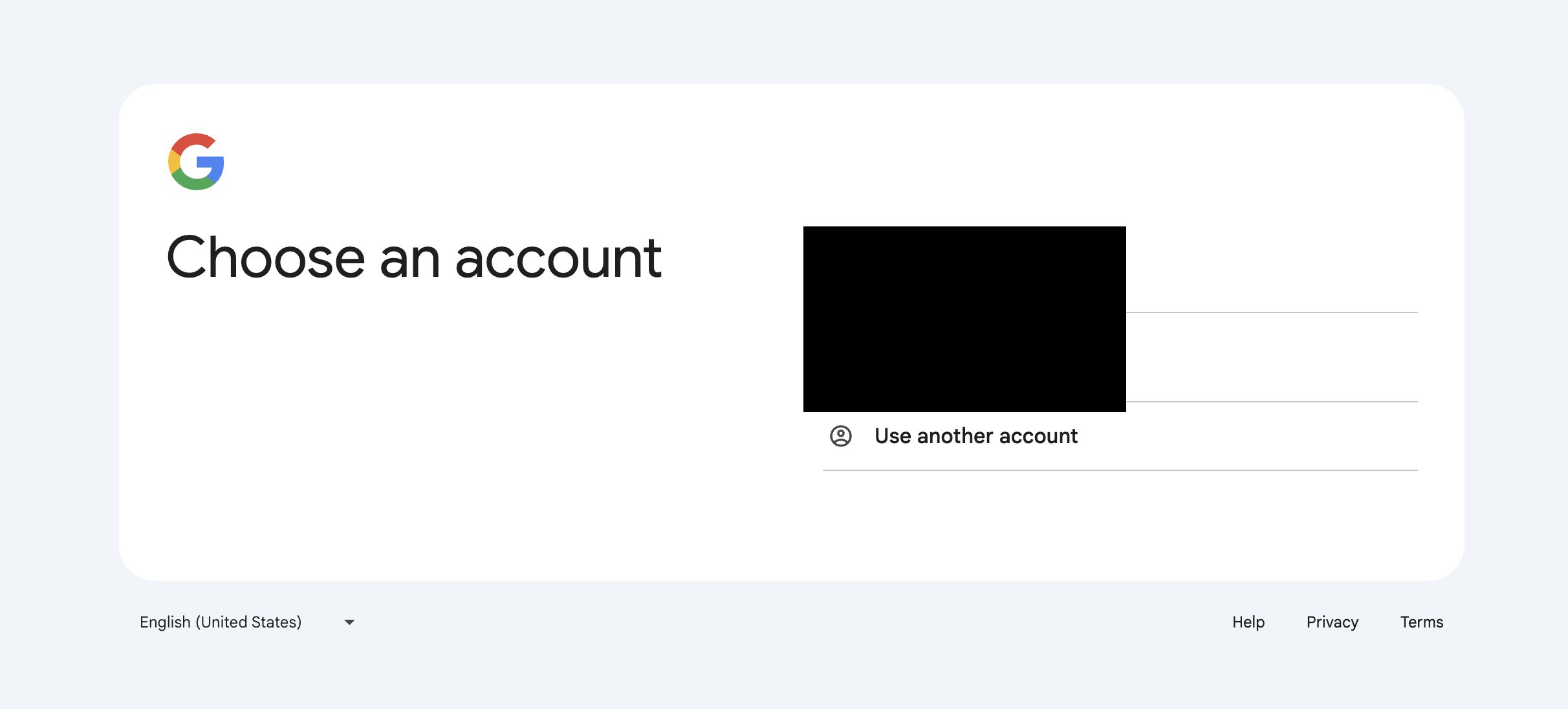
 Opening the URL above with Google set as the SAML provider returns the Google account selector:
 Upon the first login you'll ask your users to confirm their email:
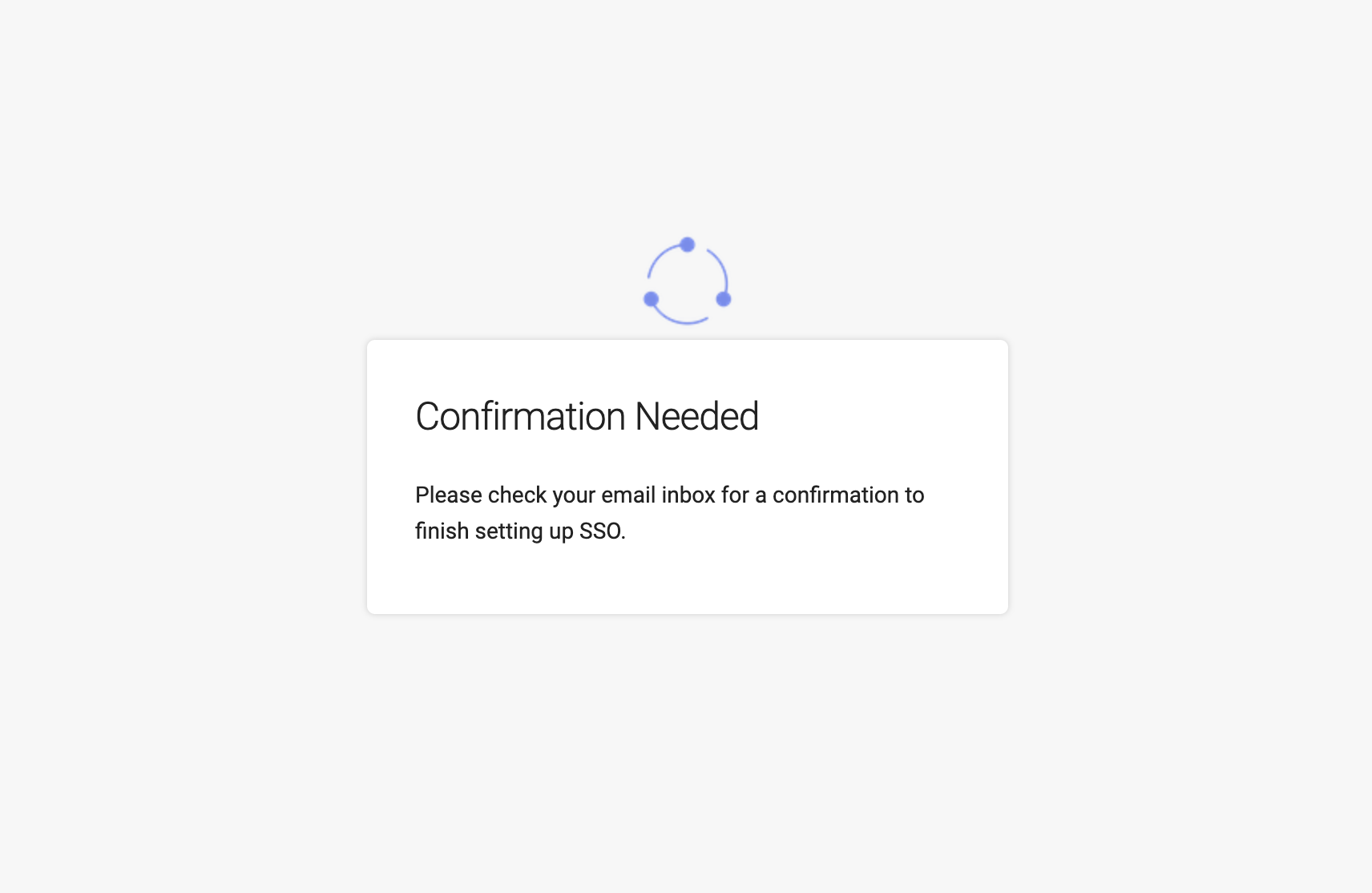 From then on, once your users choose their account on the SAML provider they get directed to the Metriport dashboard.
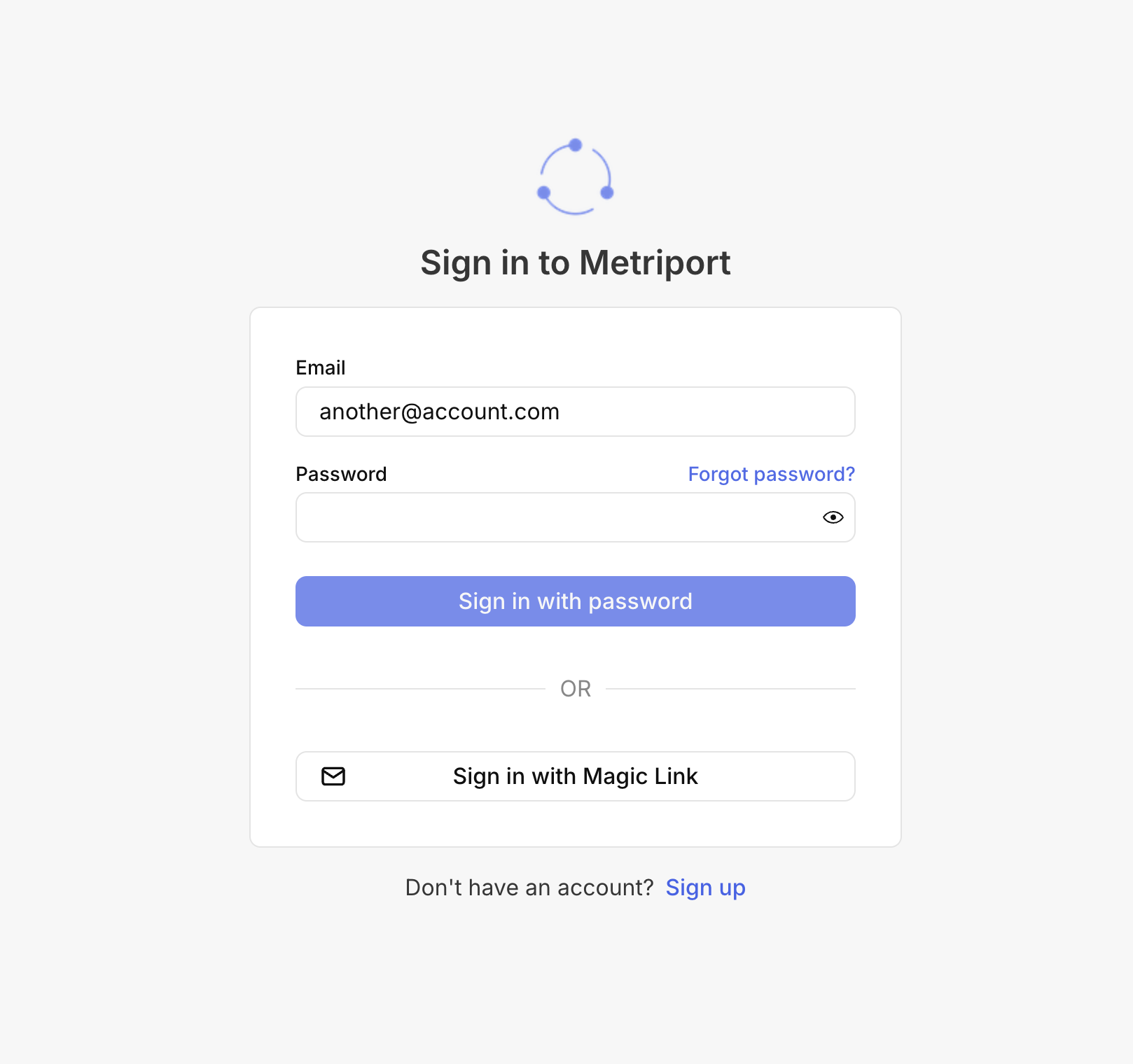
If your users go straight to [Metriport Dashboard](https://dash.metriport.com/) they'll get the regular login page:
From then on, once your users choose their account on the SAML provider they get directed to the Metriport dashboard.
If your users go straight to [Metriport Dashboard](https://dash.metriport.com/) they'll get the regular login page:
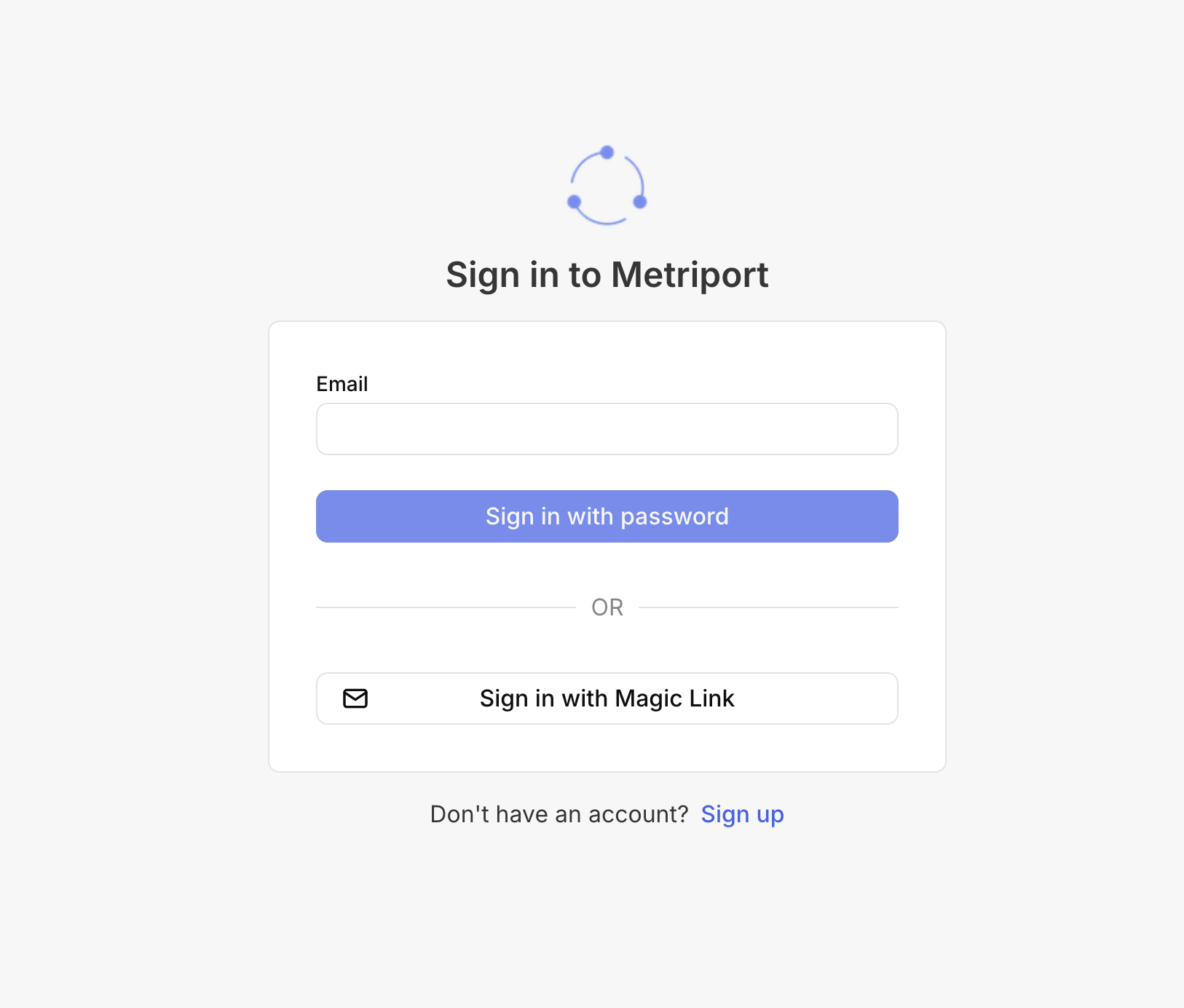 If your users enter an email associated with an Org that has SAML/SSO enabled, then that SAML provider's login/account page will be displayed (Google's in this case).
Otherwise, the `password` field will be displayed:
If your users enter an email associated with an Org that has SAML/SSO enabled, then that SAML provider's login/account page will be displayed (Google's in this case).
Otherwise, the `password` field will be displayed: