> ## Documentation Index
> Fetch the complete documentation index at: https://docs.metriport.com/llms.txt
> Use this file to discover all available pages before exploring further.
# Medical Record Summary
> Consolidate Medical Records Into a Single Document
This guide will teach you how to generate a Medical Record Summary, which condenses all of
patients' medical records into a single document.
To do this, Metriport extracts FHIR resources across all available C-CDA documents for a patient
and de-duplicates them, resulting in a set of unique medical records. These are then rendered as
HTML or PDF files, making them extremely easy to navigate.
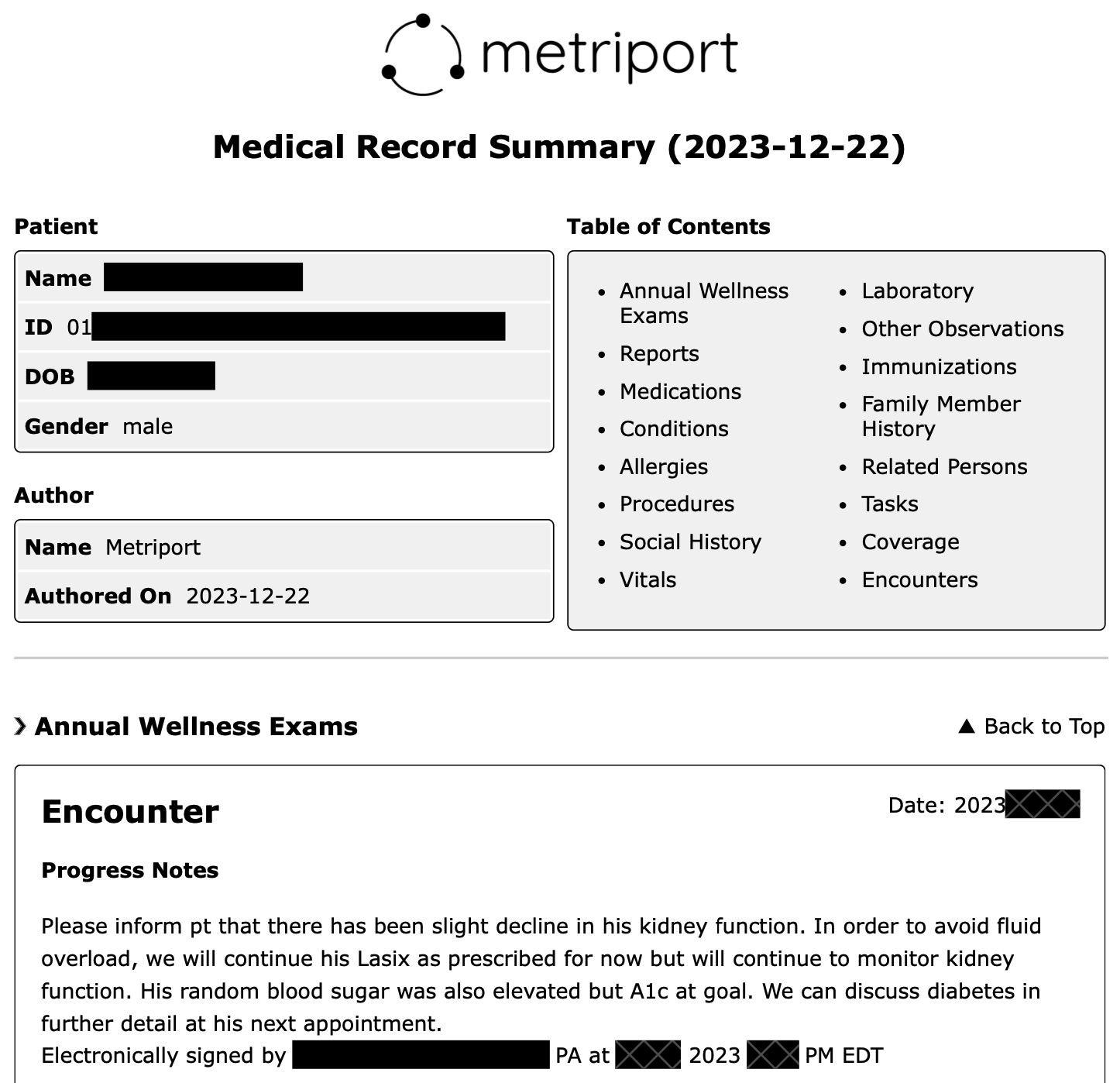
Here's the title page of an example Medical Record Summary:
 ## Generate using the API
To generate a Medical Record Summary using Metriport API:
1. Start a [Consolidated Data Query](/medical-api/api-reference/fhir/consolidated-data-query-post).
This endpoint allows you to optionally choose [FHIR resources](/medical-api/fhir/overview), date
range, and rendering (`pdf` or `html`) for your Medical Record Summary.
2. When the file is rendered, a
[webhook message with a downloadable URL](/medical-api/handling-data/webhooks-with-nq#medical-consolidated-data)
will be sent to you.
## Generate using the Dashboard
To generate a Medical Record Summary from the dashboard:
1. Navigate to the patient's page by selecting a patient from the list:
## Generate using the API
To generate a Medical Record Summary using Metriport API:
1. Start a [Consolidated Data Query](/medical-api/api-reference/fhir/consolidated-data-query-post).
This endpoint allows you to optionally choose [FHIR resources](/medical-api/fhir/overview), date
range, and rendering (`pdf` or `html`) for your Medical Record Summary.
2. When the file is rendered, a
[webhook message with a downloadable URL](/medical-api/handling-data/webhooks-with-nq#medical-consolidated-data)
will be sent to you.
## Generate using the Dashboard
To generate a Medical Record Summary from the dashboard:
1. Navigate to the patient's page by selecting a patient from the list:
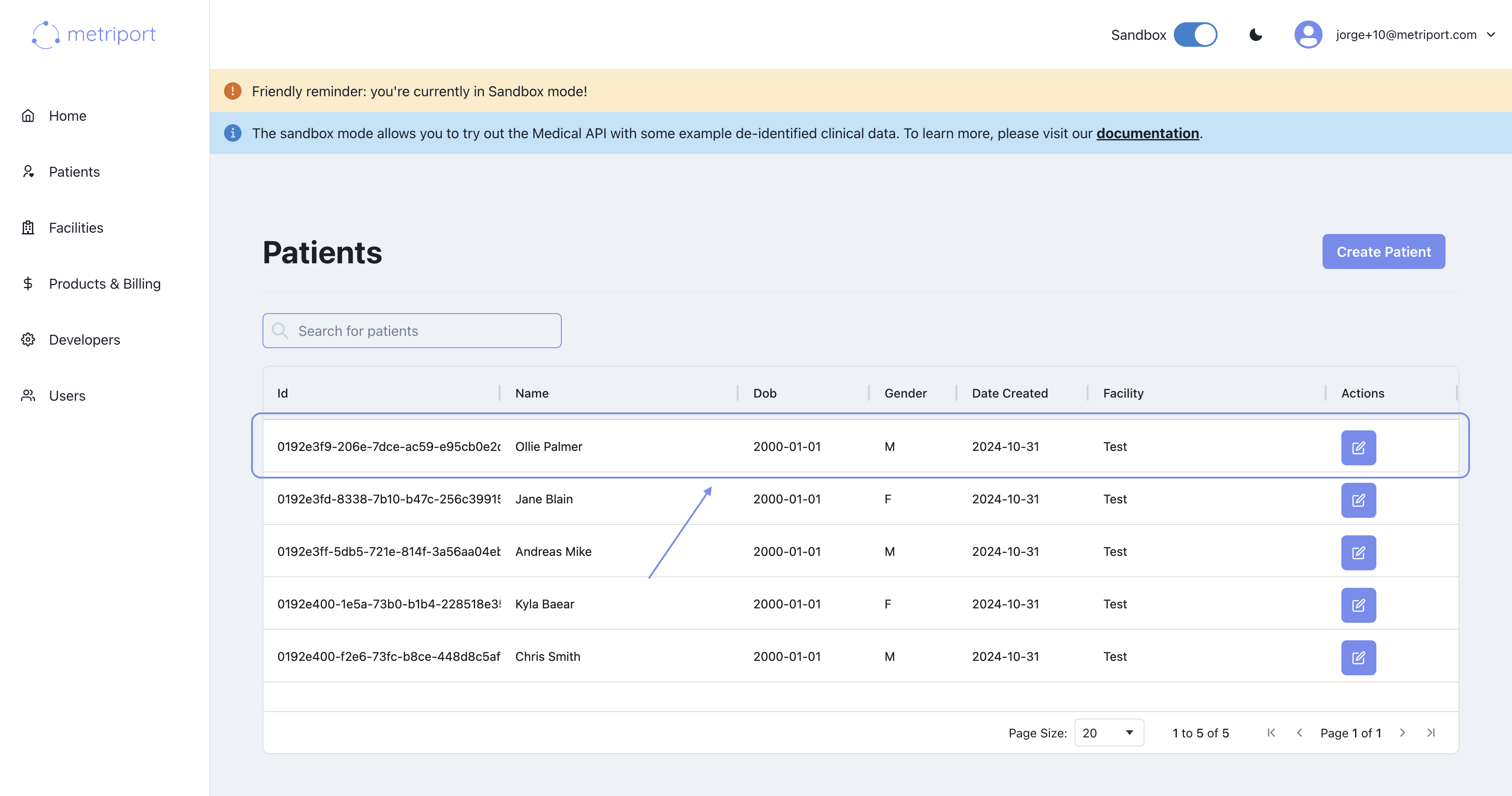 2. Click on the "Generate Medical Record" button to view the Medical Record Summary modal:
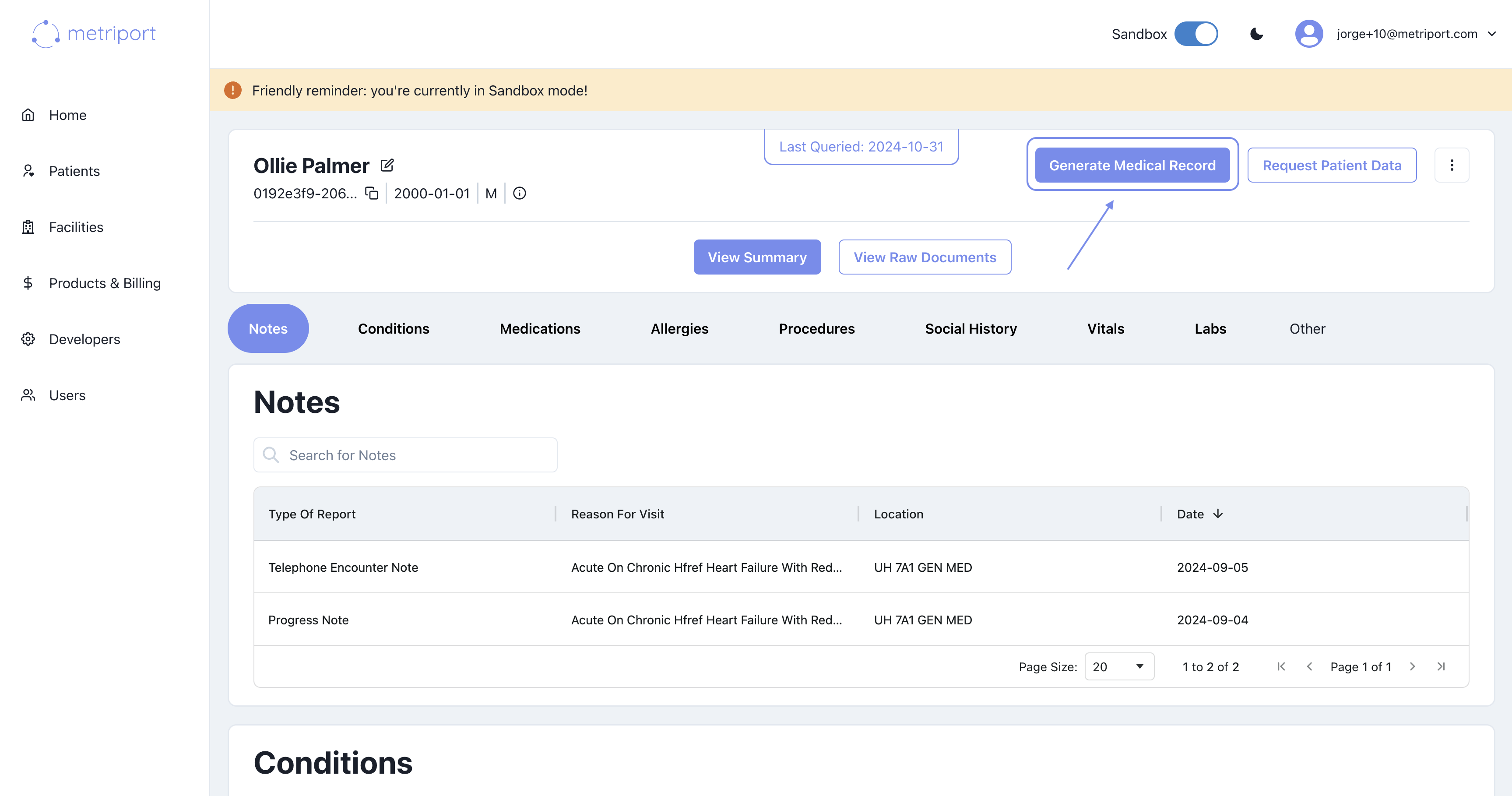 3. Select whether you want to download a new or a previously-generated (if such is available) Medical Record Summary.
4. (Optional) Choose the date range for the Medical Record Summary.
5. Click the button with the desired format to initiate the download.
For patients with a large number of documents, this may
take a few minutes to complete.
3. Select whether you want to download a new or a previously-generated (if such is available) Medical Record Summary.
4. (Optional) Choose the date range for the Medical Record Summary.
5. Click the button with the desired format to initiate the download.
For patients with a large number of documents, this may
take a few minutes to complete.
 Make sure to enable pop-ups on the website to allow
download once the document is ready.
Make sure to enable pop-ups on the website to allow
download once the document is ready.